Blog 3 – Generate User Hierarchy in MS CRM using Power Automate
Problem Statement => Sometimes you need User Hierarchy to simplify your task and actions and it can be utilized at multiple places in MS CRM like Approval or any custom logic based on User Hierarchy. Lets discuss how we can achieve this using Power Automate.
Method 1 – Using Power Automate generate MS CRM User Hierarchy
Solution =>
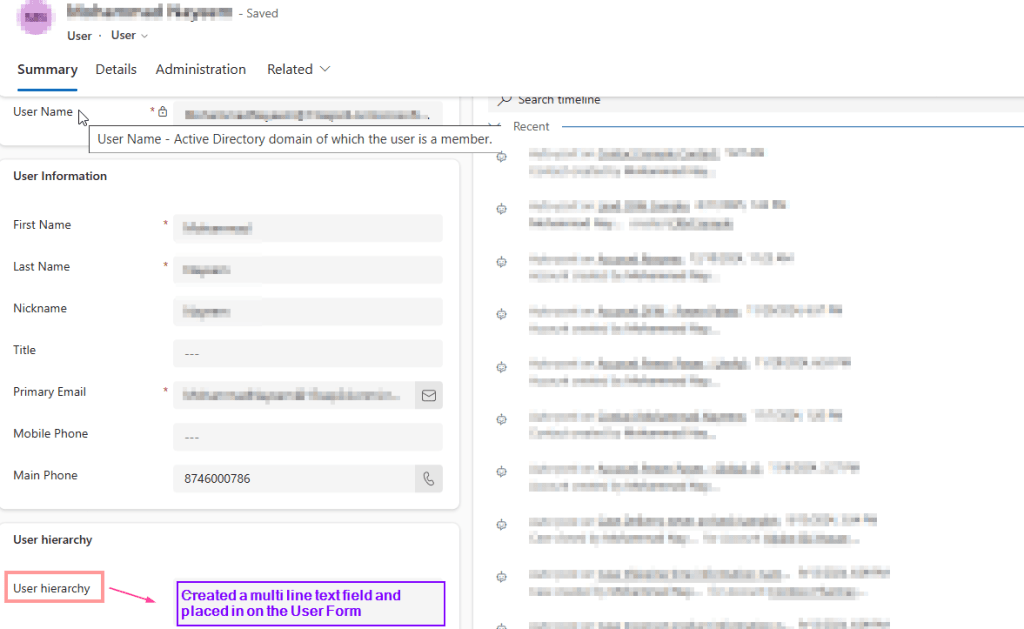
Step 1 – Create a multiline text field named “User Hierarchy” and place it on the User form.
Step 2 – Create a recurring Power Automate which is scheduled to run once daily to auto populate this “User Hierarchy” field. Below is high level snapshot of the steps involved.
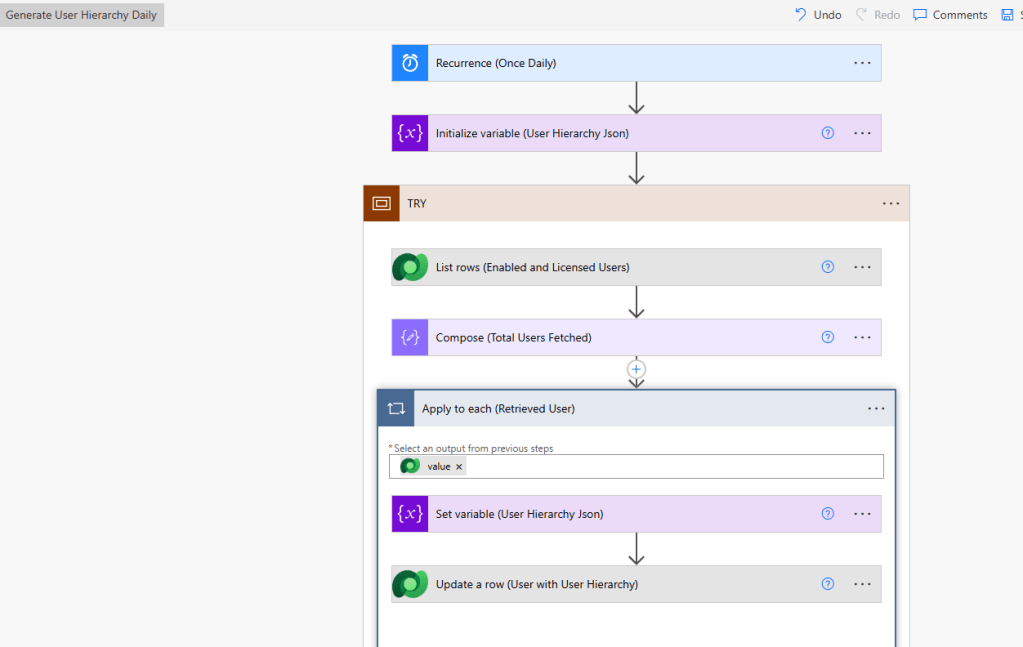
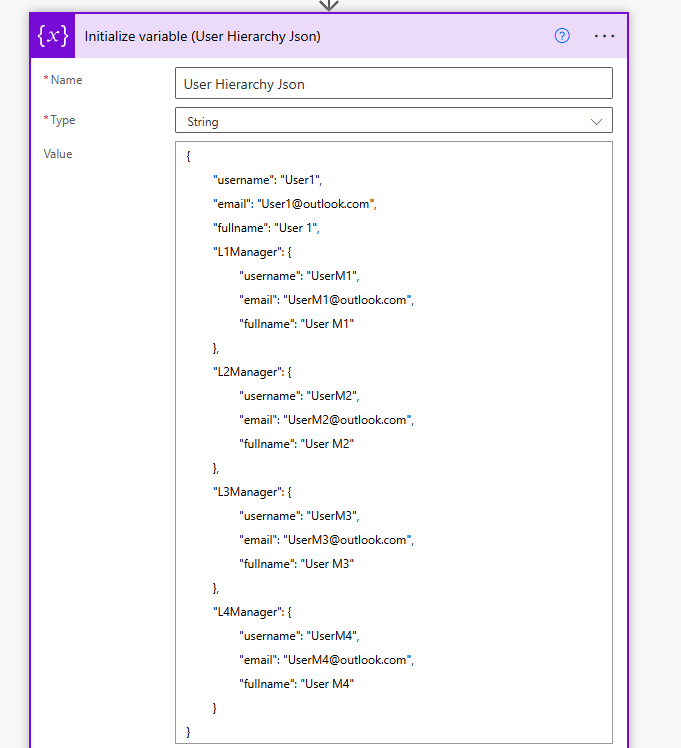
- Initialize Variable (User Hierarchy Json) as string with value given below. In this we will get User Hierarchy 4 levels deep down.
{
	"username": "User1",
	"email": "User1@outlook.com",
	"fullname": "User 1",
	"L1Manager": {
		"username": "UserM1",
		"email": "UserM1@outlook.com",
		"fullname": "User M1"
	},
	"L2Manager": {
		"username": "UserM2",
		"email": "UserM2@outlook.com",
		"fullname": "User M2"
	},
	"L3Manager": {
		"username": "UserM3",
		"email": "UserM3@outlook.com",
		"fullname": "User M3"
	},
	"L4Manager": {
		"username": "UserM4",
		"email": "UserM4@outlook.com",
		"fullname": "User M4"
	}
}
2. Next step is to retrieve enabled and licensed users only and their managers 4 level deep using expand query
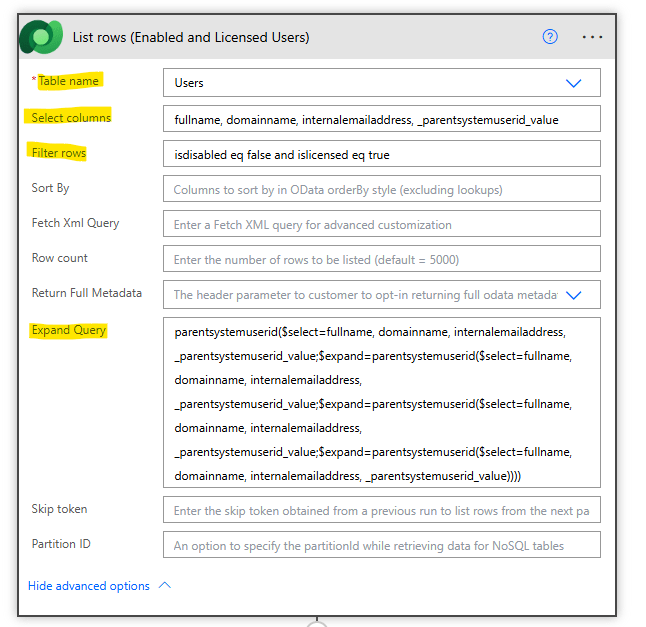
Table => Users
Select Columns => fullname, domainname, internalemailaddress, _parentsystemuserid_value
Filter Rows => isdisabled eq false and islicensed eq true
Expand Query => parentsystemuserid($select=fullname, domainname, internalemailaddress, _parentsystemuserid_value;$expand=parentsystemuserid($select=fullname, domainname, internalemailaddress, _parentsystemuserid_value;$expand=parentsystemuserid($select=fullname, domainname, internalemailaddress, _parentsystemuserid_value;$expand=parentsystemuserid($select=fullname, domainname, internalemailaddress, _parentsystemuserid_value))))
Some Expand Query example according to the level you want to go
L1
parentsystemuserid($select=fullname, domainname, internalemailaddress, _parentsystemuserid_value)
L2
parentsystemuserid($select=fullname, domainname, internalemailaddress, _parentsystemuserid_value;$expand=parentsystemuserid($select=fullname, domainname, internalemailaddress, _parentsystemuserid_value))
L3
parentsystemuserid($select=fullname, domainname, internalemailaddress, _parentsystemuserid_value;$expand=parentsystemuserid($select=fullname, domainname, internalemailaddress, _parentsystemuserid_value;$expand=parentsystemuserid($select=fullname, domainname, internalemailaddress, _parentsystemuserid_value)))
L4
parentsystemuserid($select=fullname, domainname, internalemailaddress, _parentsystemuserid_value;$expand=parentsystemuserid($select=fullname, domainname, internalemailaddress, _parentsystemuserid_value;$expand=parentsystemuserid($select=fullname, domainname, internalemailaddress, _parentsystemuserid_value;$expand=parentsystemuserid($select=fullname, domainname, internalemailaddress, _parentsystemuserid_value))))
3. Next step is we take a compose action and calculate the length of previous step using expression => length(outputs(‘List_rows_(Enabled_and_Licensed_Users)’)?[‘body/value’])
This will give us the total number of Users Retrieved.
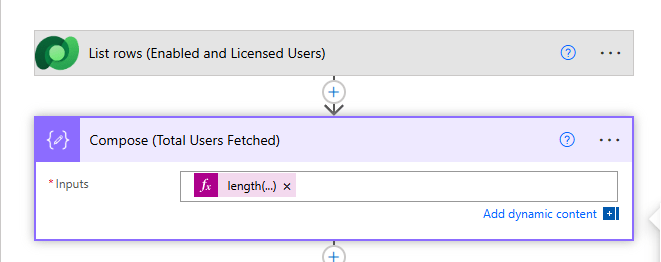
4. Next step is to set the variable “User Hierarchy Json” with the value retrieved. Put Apply to Each loop for each User retrieved using List Row action and then populate the corresponding field in the json
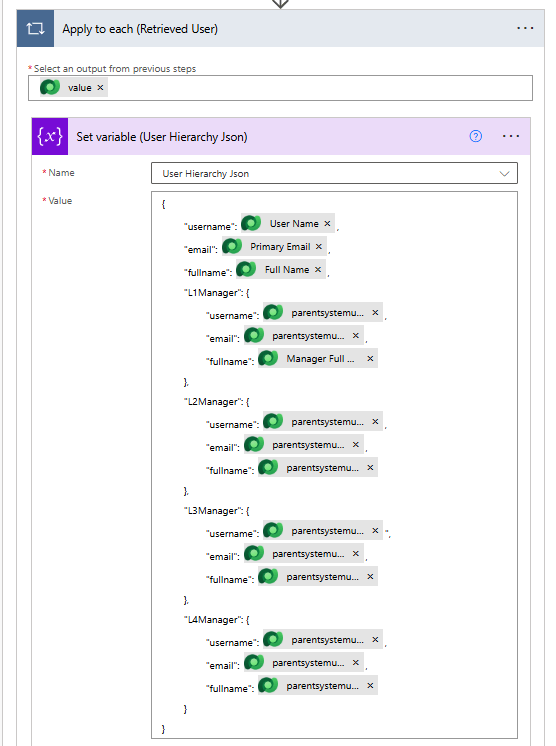
L1
items('Apply_to_each')?['parentsystemuserid/domainname']

items('Apply_to_each')?['parentsystemuserid/internalemailaddress']

items('Apply_to_each')?['parentsystemuserid/fullname']

L2
items('Apply_to_each')?['parentsystemuserid/parentsystemuserid/domainname']

items('Apply_to_each')?['parentsystemuserid/parentsystemuserid/internalemailaddress']

items('Apply_to_each')?['parentsystemuserid/parentsystemuserid/fullname']

L3
items('Apply_to_each')?['parentsystemuserid/parentsystemuserid/parentsystemuserid/domainname']

items('Apply_to_each')?['parentsystemuserid/parentsystemuserid/parentsystemuserid/internalemailaddress']

items('Apply_to_each')?['parentsystemuserid/parentsystemuserid/parentsystemuserid/fullname']

L4
items('Apply_to_each')?['parentsystemuserid/parentsystemuserid/parentsystemuserid/parentsystemuserid/domainname']

items('Apply_to_each')?['parentsystemuserid/parentsystemuserid/parentsystemuserid/parentsystemuserid/internalemailaddress']

items('Apply_to_each')?['parentsystemuserid/parentsystemuserid/parentsystemuserid/parentsystemuserid/fullname']
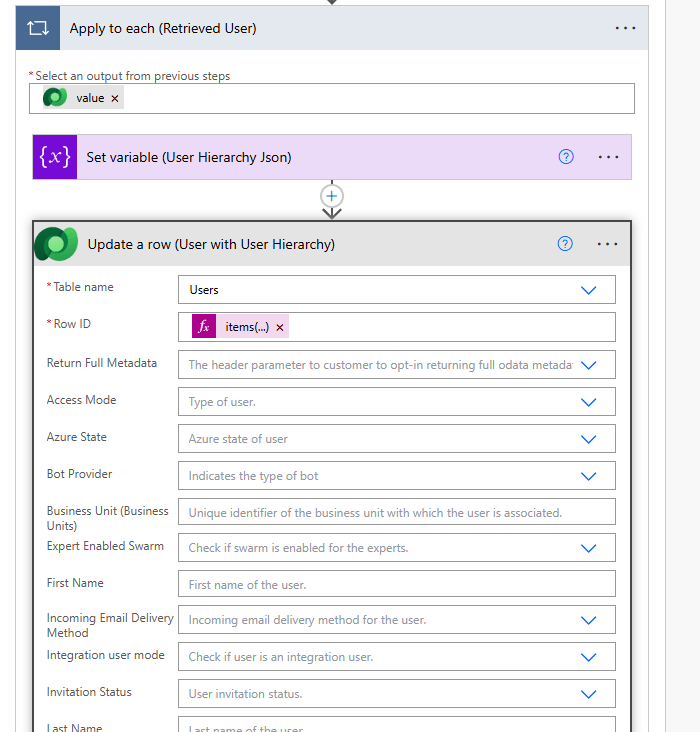
5. Update the User table field “User Hierarchy” with the newly formed variable “User hierarchy Json”
6. You are done. The final results look like.
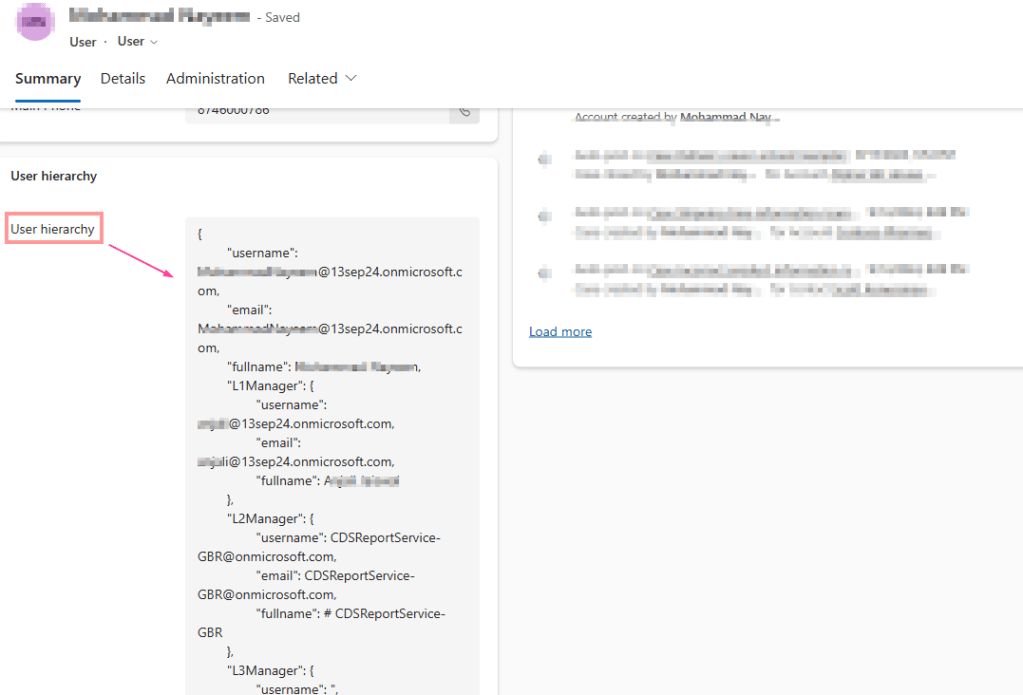
{
	"username": Mustafa.onmicrosoft.com,
	"email": Mustafa.onmicrosoft.com,
	"fullname": Mustafa,
	"L1Manager": {
		"username": Aaliya@13sep24.onmicrosoft.com,
		"email": Aaliya@13sep24.onmicrosoft.com,
		"fullname": Aaliya
	},
	"L2Manager": {
		"username": CDSReportService-GBR@onmicrosoft.com,
		"email": CDSReportService-GBR@onmicrosoft.com,
		"fullname": # CDSReportService-GBR
	},
	"L3Manager": {
		"username": ",
		"email": ,
		"fullname":
	},
	"L4Manager": {
		"username": ,
		"email": ,
		"fullname":
	}
}- The above method works well till 4 Level deep of Hierarchy.
Method 2 – Using Power Automate generate MS CRM User Hierarchy – Dynamic
Step 1 – Create a multiline text field named “User Hierarchy” and place it on the User form.
Step 2 – Create a recurring Power Automate which is scheduled to run once daily to auto populate this “User Hierarchy” field. Below is high level snapshot of the steps involved.
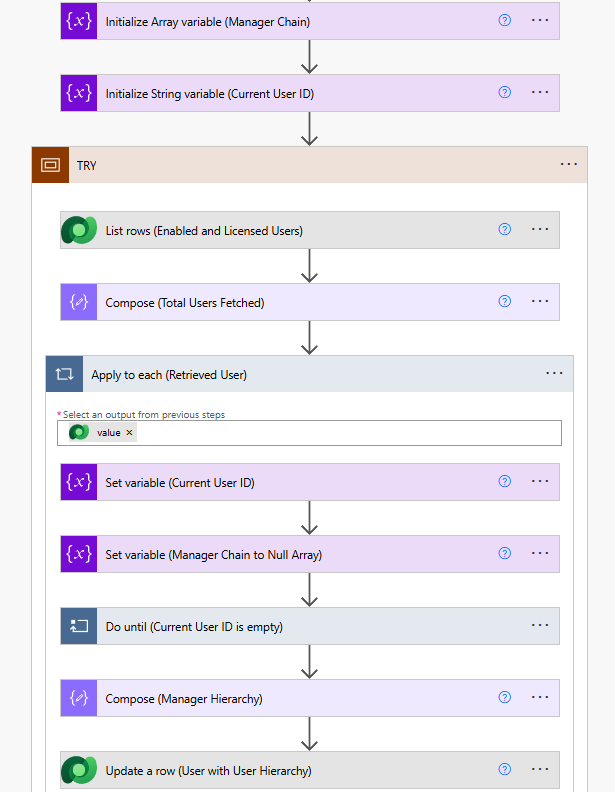
- Initialize array variable “Manager Chain” as null array []
- Initialize string variable “Current User Id” as balnk.
- Next step is to retrieve enabled and licensed users only.
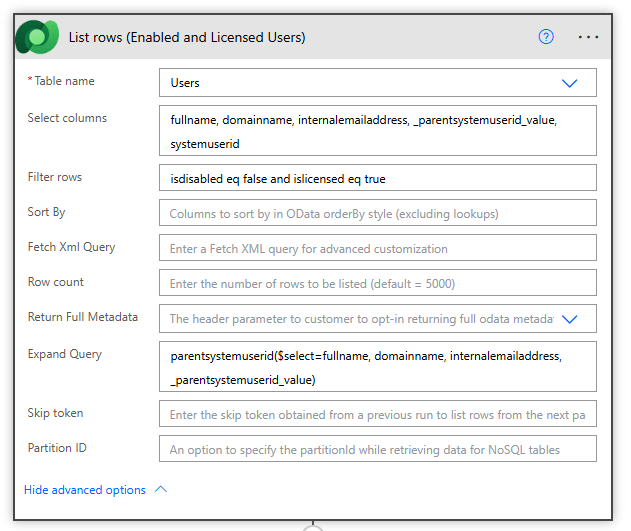
Table => Users
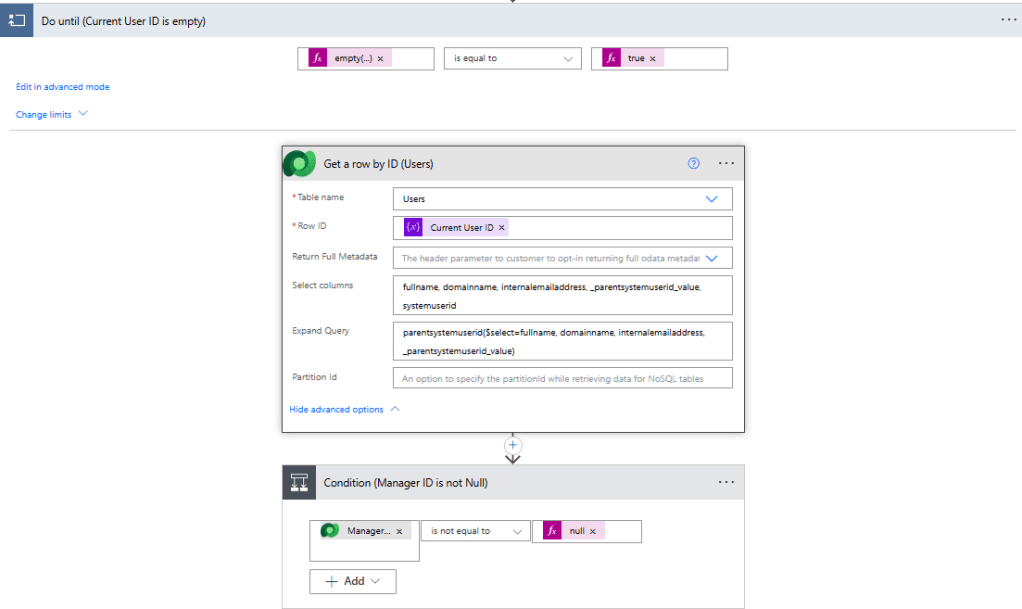
Select Columns => fullname, domainname, internalemailaddress, _parentsystemuserid_value, systemuserid
Filter Rows => isdisabled eq false and islicensed eq true
Expand Query => parentsystemuserid($select=fullname, domainname, internalemailaddress, _parentsystemuserid_value)
4. Next step is to Compose “Total Users fetched” with the length of List Rows to get total users fetched. (This is optional step)
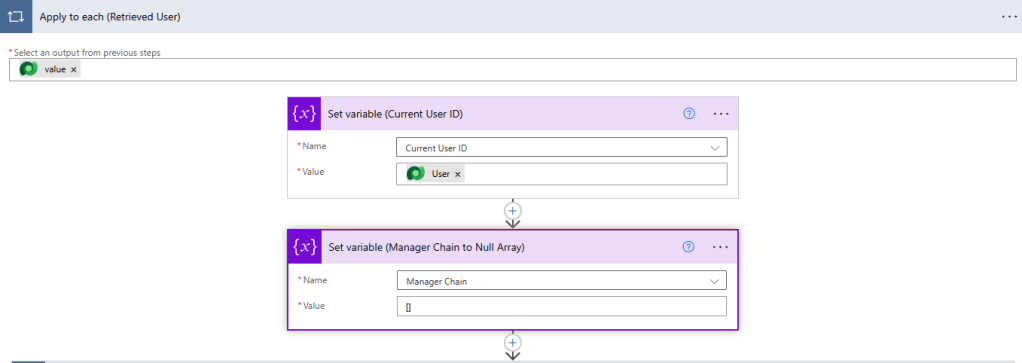
5. Next step is to appy for each retrieved user the loop
- Set Variable “Current User ID” as Current User which is under iteration in loop and “Manager Chain” as null Array.
- Set Variable “Manager Chain” as null Array.
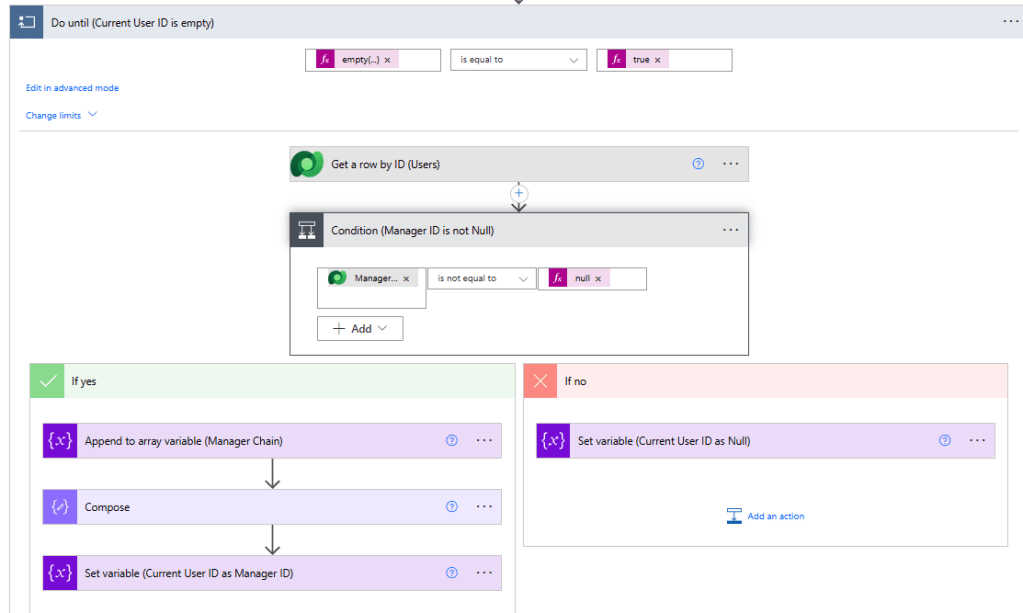
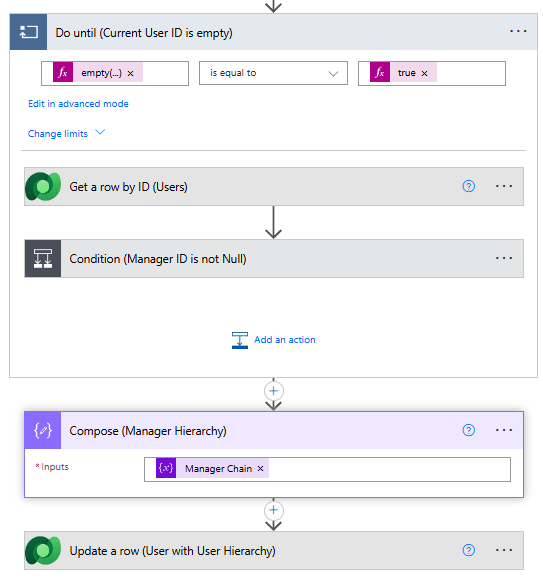
- Apply “Do Until” loop now to current user until the current user id (manager field) is empty. We will be setting Current User ID as Manager ID so that it retrieves the hierarchy of user manager.
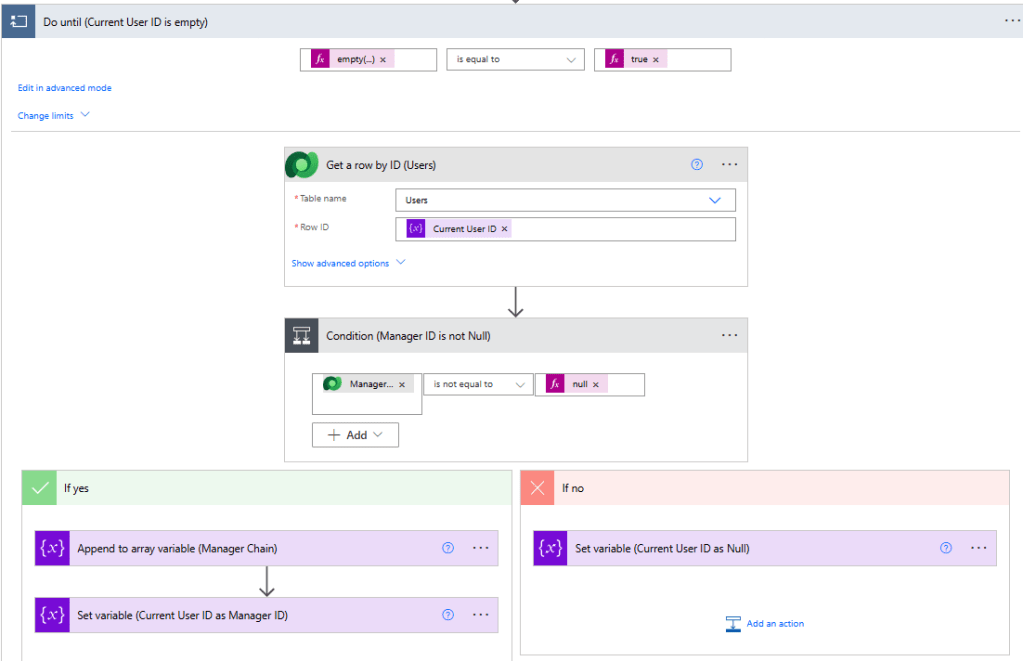
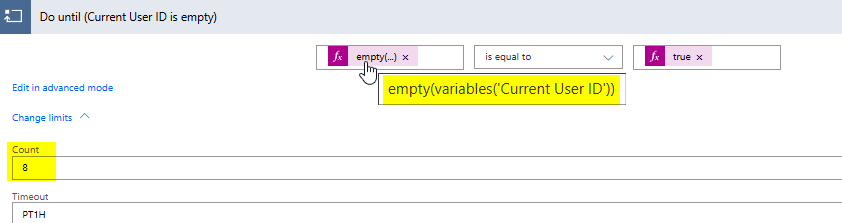
- Do until => empty(variables(‘Current User ID’)) = true.
- *PRO TIP => In “Do Until” loop you can define the max number of count you want the loop to do. By selecting this you can restrict the loop to run just for that count.
- Now fetch the current user(under iteration) and its manager using Get a row by ID.
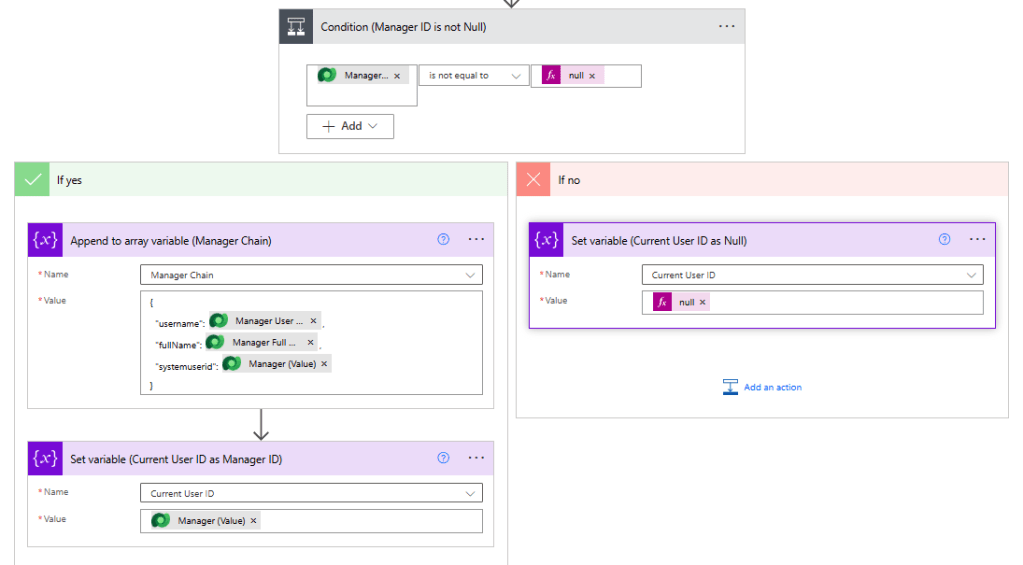
- Check condition if Manager for current user is not null, means current user has manager then => Condition true => Append to array variable “Manager Chain” the Json consisting of username, fullname, systemuserid. Next Set variable “Current User ID” as Manager Id of current user so that when next iteration in Do While happens then in Get row by ID it fetched this manager record until manager field is not empty.
{
	"username": "UN",
	"fullName": "FN",
	"systemuserid": "ID"
}- Check condition if Manager for current user is not null, means current user has manager then => Condition false => Set Variable “Current User ID” as null. So the Do until loop will exit if no manager exist for current user
- Now compose the variable “Manager Chain” so yo will get N level hierarchy array in this compose function. Then just update with the User table, User Hierarchy field with this compose.
 Microsoft Dynamics CRM & Power Platform